Attention
High Fidelity is available as an open-source platform, and all content is forked and hosted according to the distribution requirements set out in the Apache License 2.0.
Explore in Desktop Mode
Desktop users are restricted to using their keyboard and mouse to do things in High Fidelity. On this page, you can find all of the shortcuts so that you can enjoy your experience in High Fidelity to the fullest.
Note
The shortcuts below are for Windows and Linux computers. If you’re running on a Mac, use the same commands, substituting the Command key for the Ctrl key.
Movement Controls
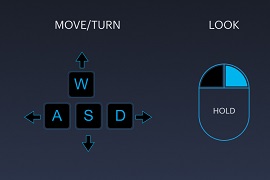
Action |
Key |
|---|---|
Walk Forward |
|
Walk Backward |
|
Run |
Hold |
Side Step to the Left |
|
Side Step to the Right |
|
Turn Left |
|
Turn Right |
|
Jump |
|
Fly |
Hold |
Fly Down |
|
In-World Controls
Action |
Key |
|---|---|
Handshake |
|
Toggle Privacy Shield |
|
Open Tablet |
|
Select Item |
Left Click |
Grab Item |
Left Click |
Inspect Item |
Right Click |
Open Browser |
|
Toggle ‘Away from Keyboard’ |
|
Toggle ‘Mute Mic’ |
|
Toggle ‘Show Statistics’ |
|
Screenshot |
|
Push to Talk |
|
Camera Controls
Action |
Key |
|---|---|
First Person View |
|
Third Person View |
|
Mirror View |
|
Pan In/Out |
With mouse, use mouse wheel. On trackpad, drag two fingers up or down. |
Take Screenshot |
|
Avatar Sizing Controls
Action |
Key |
|---|---|
Decrease Avatar Size |
|
Increase Avatar Size |
|
Reset Avatar Size |
|
Create and Edit Mode
These controls work when the Create app is open.
Action |
Key |
|---|---|
Undo |
|
Redo |
|
Delete Entity |
|
Focus on Selected Entity |
|
Align Grid to Bottom of Selected Entities |
|
Duplicate Entity |
|
Parent Entity |
|
Unparent Entity |
|
Copy Entity |
|
Paste Entity |
|
Toggle Global/Local Translation |
|
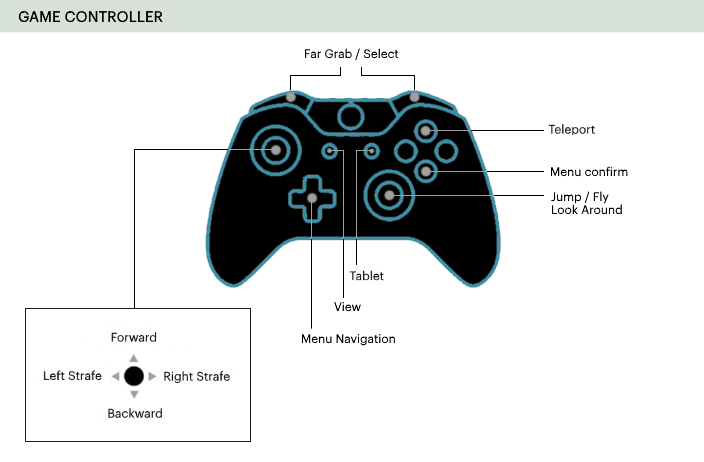
Gamepad
Instead of a keyboard, you can use a gamepad while experiencing High Fidelity in desktop mode.